
Acer 4-in-1 USB C Hub
4.2Editor score
4K@60Hz dual output
100W power delivery
Compact 4-in-1 design
Discover the top rated dual HDMI monitor adapter models reviewed for 2026. Compare performance, compatibility, and features to find the perfect multi-monitor
Finding the right dual HDMI monitor adapter is essential for modern productivity. Whether you need extended displays or mirrored screens, these devices transform single output ports into versatile dual-screen setups for enhanced workflow efficiency.
We compared ten leading models based on resolution support, operating system compatibility, and connection types. Our analysis covers USB-A, USB-C, and DisplayPort solutions to help you choose the best adapter for your specific hardware needs and professional requirements.
Each pick highlights key strengths, limitations, and ideal use cases. Please note that prices fluctuate frequently on Amazon, so check current listings before purchasing to ensure you get the best value for your investment in multi-monitor productivity.
4.2Editor score
4.5Editor score

4.5Editor score
This side-by-side comparison evaluates all ten selected adapters across critical performance metrics. Review resolution capabilities, port types, operating system support, and additional features to identify the model that best matches your specific dual-monitor configuration requirements.


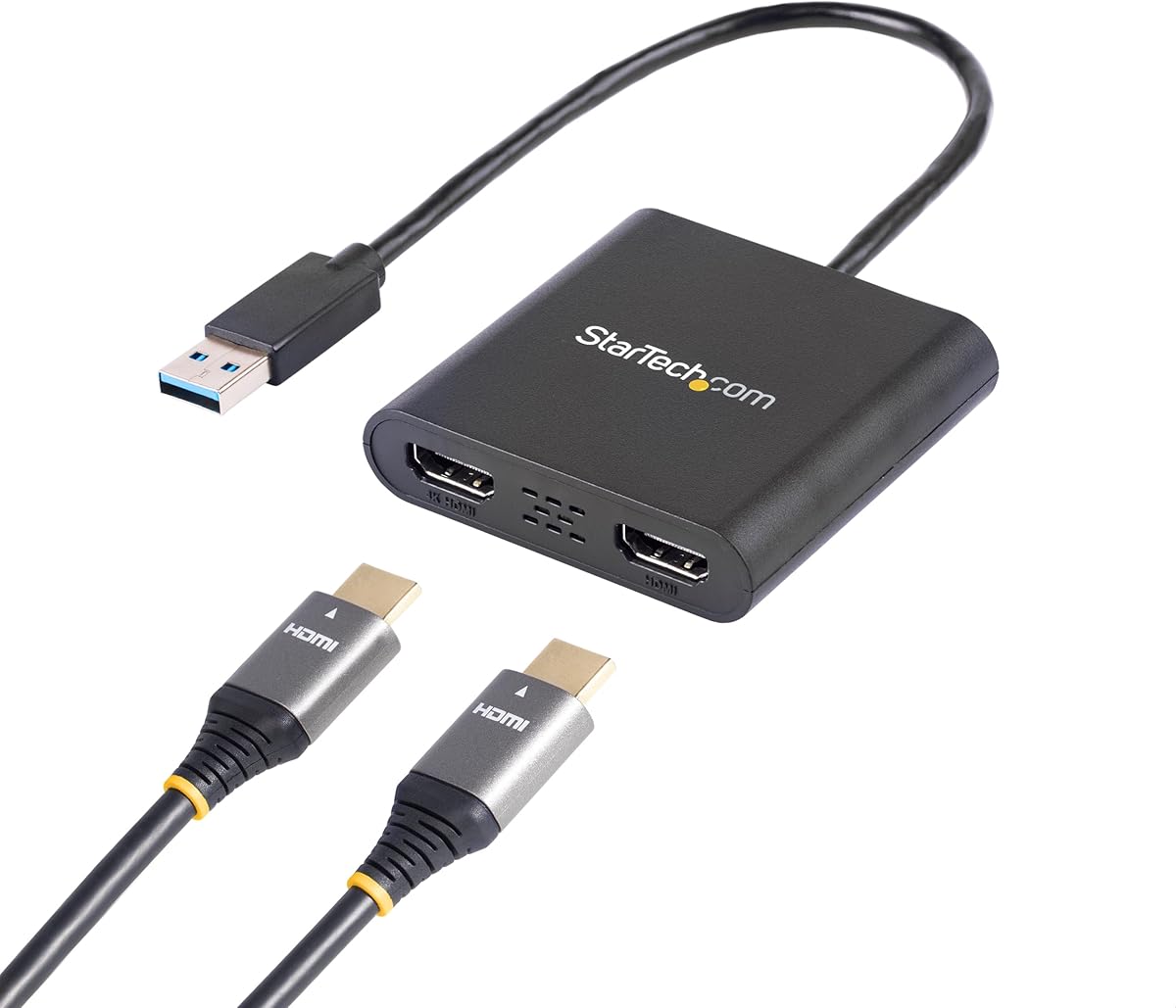
This adapter offers stable dual-screen productivity for Windows workstations. Its 4K 30Hz capability suits general office tasks well, while the included lifetime technical support adds long-term value for IT environments.
We may earn a commission when you buy through this link, at no additional cost to you.
The adapter works across Intel, AMD, and Snapdragon X platforms. Administrator rights are needed for driver installation, but once set up, it extends desktops smoothly to two HDMI monitors without lagging.
Trade-offs include macOS incompatibility and a 30Hz cap on 4K. These limitations matter for creative work but are acceptable for productivity apps where refresh rates matter less than reliability.
Buy this if you run Windows and need a durable, supported dual HDMI adapter. Its IT-focused design ensures consistent performance, making it a top choice for enterprise and home office setups.
Built for IT pros, this adapter includes free lifetime technical assistance and a robust 3-year warranty for long-term peace of mind.
Add up to two HDMI monitors to your laptop or desktop for extended desktop workspaces ideal for multitasking and workflow efficiency.
We may earn a commission when you buy through this link, at no additional cost to you.
This hub delivers dual 4K@60Hz visuals at a budget-friendly price. Its 4-in-1 design adds data ports and charging, making it a versatile travel companion for modern laptops needing extended screens.
We may earn a commission when you buy through this link, at no additional cost to you.
Users benefit from 100W power delivery and fast USB-A transfers. The sleek design fits easily in bags, while HDMI 2.0 ensures crisp visuals on both connected monitors for presentations or spreadsheets.
Mac users face mirroring limits, and the short cable may restrict desk layouts. These are minor trade-offs for the price, especially if you prioritize refresh rates and port versatility over screen flexibility.
Choose this if you need affordable dual 4K@60Hz with charging. It suits students and professionals wanting high refresh rates without spending extra, as long as your laptop supports DP Alt Mode.
Get dual HDMI, USB-A data, and 100W charging in one compact hub that expands laptop capabilities without adding bulk.
Both HDMI ports support 4K@60Hz, delivering smooth and vivid visuals ideal for multitasking or media consumption.
We may earn a commission when you buy through this link, at no additional cost to you.
This converter provides premium dual 4K@60Hz performance for professionals. Its multiport design includes USB-A and PD charging, ensuring all your needs are met in one sleek and powerful adapter solution.
We may earn a commission when you buy through this link, at no additional cost to you.
It supports Windows extension and macOS mirroring with smooth 60Hz output. The high-speed data and charging capabilities allow uninterrupted work sessions, making it ideal for power users with high-end setups.
Adapters and HDMI 2.0 cables aren't included, raising setup costs slightly. However, the performance and features justify the investment for those who need reliable high-resolution dual monitors daily.
Invest in this if you demand premium dual 4K@60Hz with charging. It suits professionals wanting seamless performance across systems, provided you have the necessary HDMI cables and power adapters ready.
Delivers dual 4K@60Hz resolution with DisplayPort MST technology for smooth gaming and multimedia on external ultra HD screens.
Includes USB-A data and 100W PD fast charging alongside dual HDMI for complete expansion in a compact design.
We may earn a commission when you buy through this link, at no additional cost to you.
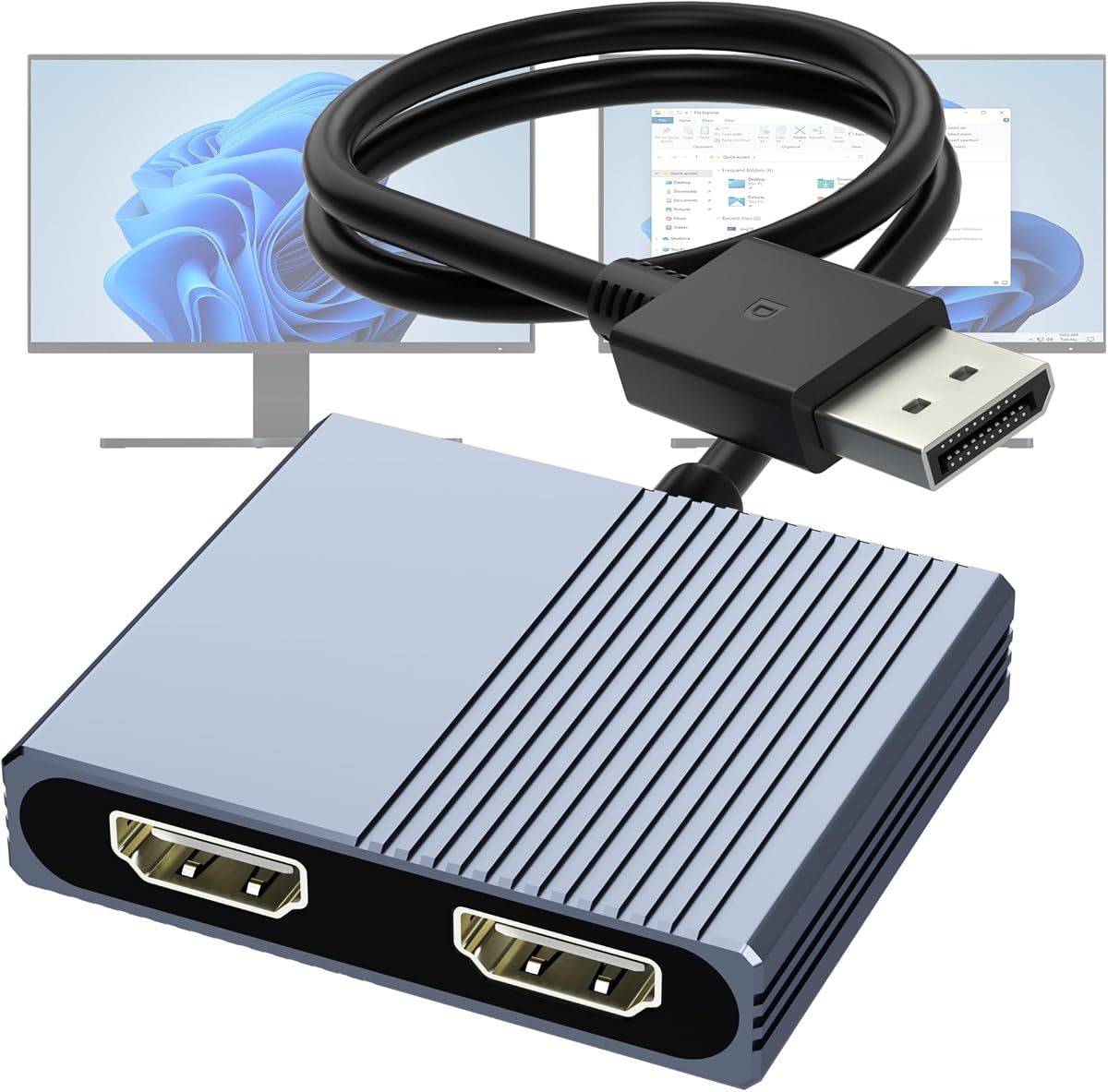
This splitter leverages DisplayPort MST to drive two 4K@60Hz screens from a single source. It targets desktop users with dedicated GPUs, offering extended displays without complex driver installations or external hubs.
We may earn a commission when you buy through this link, at no additional cost to you.
Its smart chip ensures stable signal transmission with layered shielding. The anti-interference connector protects your graphics card during unplugging, while support for SST and MST modes provides flexibility for different OS setups.
You'll need a separate 5V 2A power adapter, and DP 1.4 is mandatory for dual 60Hz. These requirements make it less plug-and-play than USB options, but excellent for GPU-equipped machines seeking high fidelity.
Select this if you have a DP 1.4 port and want dual 60Hz. It works best with dedicated graphics cards for reliable extended displays without extra software or USB dependency issues.
Supports both SST and MST modes for flexible mirrored or extended displays across Windows systems with DisplayPort outputs.
Multi-layer shielding and non-locking connectors prevent damage and ensure stable 4K@60Hz visuals on both connected monitors.
We may earn a commission when you buy through this link, at no additional cost to you.
This adapter allows three separate screens and works on macOS, which few USB adapters do. Its cross-platform support makes it a rare find for users with mixed systems or Mac laptops needing extended visuals.
We may earn a commission when you buy through this link, at no additional cost to you.
Resolutions up to 1920×1080@60Hz ensure smooth productivity. Driver installation is required, but the setup unlocks extended modes even on macOS, where native external display support is often limited.
It does not support streaming sites like Netflix due to HDCP restrictions. While not for media playback, it excels at work apps where multiple windows need distinct layouts and high refresh rates.
Buy this if you need macOS support with extended screens. Its unique cross-platform capability and solid warranty make it ideal for mixed environments or Mac users needing more than one external display.
Compatible with Windows, macOS, Chrome OS, and Android for flexible multi-monitor setups across various operating systems.
Enables true extended screens on macOS, a rare feature that boosts productivity for Mac laptop users with dual monitors.
We may earn a commission when you buy through this link, at no additional cost to you.
This splitter supports extended displays on macOS with a 4K@30Hz output. Its Intel i5 processor requirement ensures the system can handle the driver load, making it suitable for modern workstations with sufficient CPU power.
We may earn a commission when you buy through this link, at no additional cost to you.
The integrated adapter simplifies connections across USB-A and USB-C ports. Driver installation is needed, but once active, it boosts productivity by enabling a three-screen setup with laptop and two external monitors.
MacOS users face 1080p mirroring limits without extended support. While less flexible for media, it shines for office work where the Intel i5 requirement guarantees stable extended visuals across both screens reliably.
Choose this if you meet the Intel i5 spec and need macOS extension. Its reliable 4K@30Hz output and dual USB support make it a solid pick for workstations prioritizing screen real estate over refresh rates.
Connect one HDMI source to two external displays for extended viewing ideal for boosting productivity with 3-screen setups.
Integrated USB-A to USB-C adapter ensures compatibility with a wide range of laptops and devices.
We may earn a commission when you buy through this link, at no additional cost to you.
This docking station transforms laptops into full desktop workspaces with dual 4K@60Hz outputs. Its 8-in-1 design integrates USB ports, SD slots, and powerful charging, making it an excellent all-in-one solution for professionals.
We may earn a commission when you buy through this link, at no additional cost to you.
Temperature control ensures stable performance under heavy use. The 100W PD port keeps laptops powered, while fast USB transfers handle peripherals efficiently, maximizing productivity in home or office environments.
Mac users get mirroring only, not extended screens. While a limitation, the rest of its features justify the price for those needing a complete hub with high refresh rate dual monitors.
Invest if you want a full hub with dual screens. Its balanced design handles charging, data, and video seamlessly, ideal for hybrid work setups where maximizing laptop capabilities is essential.
Dual HDMI, USB, SD, and PD charging in one 8-in-1 station suitable for home and office productivity use.
Delivers up to 5Gbps USB transfers and stable 85W output via 100W PD for uninterrupted work sessions.
We may earn a commission when you buy through this link, at no additional cost to you.
This splitter duplicates one signal to two displays without extended desktops. Its simple setup makes it perfect for mirroring presentations or media where identical screens matter more than distinct workspace flexibility.
We may earn a commission when you buy through this link, at no additional cost to you.
Support for 4K 30Hz ensures clear visuals on both monitors. Audio synchronization is built in, removing extra cables for sound. It works well with game consoles or PCs where consistent output is key.
It lacks extended mode, which limits productivity. However, for presentations or home theater setups, its no-driver simplicity and audio sync make it an affordable and reliable choice for mirrored content.
Pick this for mirrored content only. Its plug-and-play design and audio support suit presentations or entertainment setups where two identical screens are needed without software complications.
Splits one source into two matching displays without needing drivers or complex configuration for easy setup.
Audio signal synchronizes with video, eliminating the need for extra cables for sound output on both screens.
We may earn a commission when you buy through this link, at no additional cost to you.
This MST hub drives two 4K@60Hz displays from a single DP source. Built for NVIDIA and AMD cards, it offers extended displays with rugged durability, making it ideal for high-performance desktops.
We may earn a commission when you buy through this link, at no additional cost to you.
The aluminum housing and gold-plated connectors ensure stability. Plug-and-play simplicity means no drivers, while DP 1.4 support allows both monitors to run at full resolution and refresh rate simultaneously without lag.
It only works one-way from DP to HDMI and needs DP 1.4. Integrated graphics may not support extended modes, so dedicated GPUs are recommended. These constraints are minimal for most desktop power users.
Select this if you have a DP 1.4 GPU. Its build quality and extended mode support make it excellent for desktops requiring two smooth 4K screens for productivity or content creation.
Designed for AMD and NVIDIA graphics cards to deliver stable dual 4K@60Hz displays without requiring additional drivers.
Aluminum alloy housing with gold-plated ports ensures durable construction and stable signal transmission for repeated use.
We may earn a commission when you buy through this link, at no additional cost to you.
This compact hub provides dual 4K@60Hz with extra USB-A ports for peripherals. Its slim build and plug-and-play ease make it ideal for travelers who need quick dual-screen expansion and power.
We may earn a commission when you buy through this link, at no additional cost to you.
With 100W PD charging and three USB 2.0 ports, you can connect devices while keeping laptops charged. It works seamlessly in Windows extended mode, while macOS users get mirroring flexibility.
The 30cm cable is short and macOS limits to mirroring. Still, its balance of video, power, and ports makes it a practical daily driver for hybrid workers needing portability and reliable dual screens.
Choose this if you want a compact hub with dual screens. Its portable design and charging support suit remote workers who need organized setups without sacrificing screen quality or connectivity options.
Includes three USB-A ports to connect keyboards, mice, and drives, creating an organized workspace anywhere.
Plug and play design with slim, lightweight build fits easily in laptop bags for hybrid work setups.
We may earn a commission when you buy through this link, at no additional cost to you.
Choosing the right adapter depends on your laptop's ports, desired resolution, and operating system. Review these factors to avoid compatibility issues and ensure your dual monitor setup performs smoothly.
Check if your laptop has USB-A, USB-C with DP Alt Mode, or DisplayPort. USB-C and DP offer higher bandwidth, while USB-A often requires drivers. Match the adapter to your existing ports for best performance.
Prioritize USB-C or DP for high refresh rates and modern laptops.
Dual adapters often share bandwidth. Some support 4K@60Hz on both, others limit to 30Hz or 1080p. Higher refresh rates improve smoothness for motion or multitasking. Match your monitor specs to avoid bottlenecks.
Look for dual 4K@60Hz if you need smooth visuals on both screens.
Windows generally supports extended displays, while macOS often mirrors unless the adapter supports MST. Verify OS compatibility to ensure you get the display mode you want. Driver support matters for Windows too.
Confirm macOS MST or Windows driver support for extended modes.
Many USB-C adapters offer PD charging. This keeps laptops powered while using external displays. Check wattage ratings to ensure they match your laptop's charging needs for uninterrupted work sessions.
Choose adapters with 100W PD to charge laptops while in use.
Aluminum housing and gold-plated ports improve durability. Look for multi-year warranties and technical support. Higher build quality reduces heat and ensures stable signals over time in daily use scenarios.
Prioritize aluminum builds with solid warranty coverage for longevity.
Some hubs include USB-A or SD slots. These expand connectivity beyond video. If you need data transfers or card reads, choose multiport options. Avoid single-adapter models if you lack laptop ports.
Select multiport hubs for added USB or SD functionality.
Some adapters need drivers; others are plug-and-play. Drivers add setup steps but enable extended modes. Check if you can install software on work devices before buying driver-reliant models.
Choose plug-and-play for simple setups; drivers for extended Windows modes.
Mirror-only splitters differ from extended adapters. For presentations, mirror may suffice. For productivity, extended is key. Match the adapter to your primary task to avoid missing features you actually need daily.
Verify extended vs mirror mode based on your workflow needs.
Connect the adapter to your laptop's compatible port and attach HDMI cables to monitors. Plug in any power cables if required. Turn on displays and adjust display settings to extended or mirrored mode.
For USB-C models, ensure your laptop supports DP Alt Mode. If drivers are needed, download from the manufacturer's site before connecting. Restart devices if displays are not detected after initial setup.
Clean ports with dry cloth and avoid bending cables tightly. Store adapters in cases to prevent damage. If heat builds up, give the adapter space to cool during long sessions for optimal performance.
Yes, but macOS usually mirrors displays unless the adapter explicitly supports MST. Check product details for macOS extended support. Many USB-C hubs mirror on Mac, so verify before purchasing.
Some USB-A adapters require drivers for extended modes, while USB-C or DP models often work plug-and-play. Check the product specs. For work devices, confirm IT permissions before installing any software.
Many support dual 4K@30Hz, while others offer dual 4K@60Hz depending on bandwidth. Match your monitors to the adapter. Check HDMI 2.0 cable requirements for higher refresh rates to avoid limitations.
USB adapters may introduce input lag, so they are not ideal for gaming. DP MST hubs perform better. For competitive play, rely on native graphics ports instead of adapters to ensure smooth responses.
Check your laptop specs for USB-C with DP Alt Mode or DisplayPort. Thunderbolt 3/4 ports support video. Ensure your port matches the adapter type. Review manuals or use system tools to verify.
Not all support HDCP protected content like Netflix. Check product details. Many adapters work for productivity apps. If streaming is key, verify HDCP support before purchasing for legal video playback.
Some DP hubs require external power for full performance. USB-C hubs often draw power from the laptop. Verify the package contents. Ensure enough power for stable dual 4K outputs.
Most brands offer 1 to 3-year warranties. StarTech includes a 3-year plan. Check seller terms. Some include lifetime technical support. Read terms for coverage details before buying online.
This guide covered ten top adapters for dual-monitor needs. From the StarTech Editor's Choice to budget-friendly Acer options, each offers unique strengths for Windows or Mac setups with varied refresh rates.
Prioritize OS compatibility and resolution needs when selecting. USB-C hubs with charging suit modern laptops, while DP hubs serve desktops well. Match the adapter to your specific port types and display goals.
Prices and availability change frequently. Always check current listings for your selected model. Verify warranty terms and return policies. Investing in the right adapter now ensures smooth productivity for years ahead.