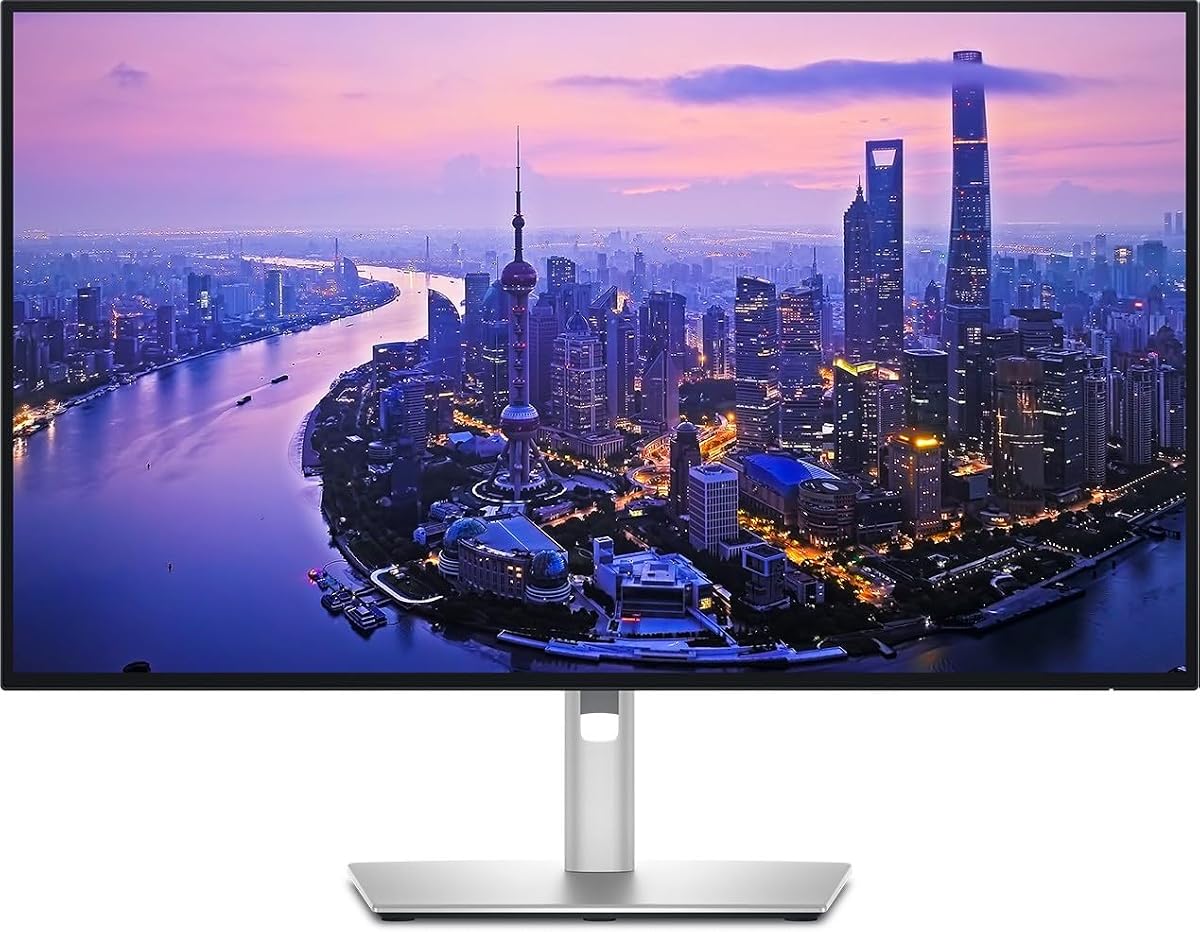
Dell UltraSharp U2725QE 27-Inch 4K UHD IPS Black Monitor
4.4Editor score
Thunderbolt 4 with 140W power
Daisy chain support for setups
Ambient light sensor adjustment
This guide compares the top 4K monitors with Thunderbolt connectivity for professionals and creators, evaluating color accuracy, speed, and hub features to
Finding the right display for your workstation requires careful consideration of connectivity and visual fidelity. Thunderbolt technology offers a streamlined solution for modern users who need high bandwidth and power delivery in a single cable.
We have evaluated ten leading models based on color performance, refresh rates, and ergonomic design. Each option provides unique benefits for creators, developers, and executives seeking enhanced productivity and visual clarity in their daily tasks.
Every selection highlights key strengths and practical use cases to guide your decision. Note that availability and pricing fluctuate frequently, so verify current details before purchasing to ensure you receive the best value available today.
4.4Editor score

4.6Editor score

4.4Editor score
The following table outlines the core specifications of each model to help you compare visual performance, connectivity options, and physical dimensions side by side.


This 32-inch monitor stands out with its enhanced IPS Black panel delivering 3000:1 contrast. Rated 4.6 stars, it offers deeper blacks than conventional IPS for more vivid visuals.
We may earn a commission when you buy through this link, at no additional cost to you.
The 99% Display P3 coverage ensures color precision for photos and videos. The built-in KVM switch allows seamless control of two machines using one keyboard and mouse.
The price reflects its premium features like the light ash finish and high contrast. It may be too large for smaller desks due to the 32-inch size.
Ideal for creatives and executives seeking a refined workspace. Its Mac compatibility makes it a top choice for Apple ecosystem users needing reliability.
Factory calibration to Delta E less than 1.5 ensures accurate colors right out of the box for professional work.
The KVM switch simplifies managing multiple devices, allowing you to switch tasks without physical input switching.
We may earn a commission when you buy through this link, at no additional cost to you.
This model combines IPS Black technology with robust connectivity options. It holds a 4.4 rating and features a single cable solution for video and data transfer.
We may earn a commission when you buy through this link, at no additional cost to you.
The Thunderbolt 4 port delivers up to 140W power, perfect for charging laptops. Factory calibration ensures color accuracy with Delta E less than 1.5.
It is priced higher than standard monitors due to the premium panel. Response time is adequate for productivity but might not suit fast gaming.
Professionals needing reliability and color fidelity will appreciate this setup. It is excellent for multitasking across multiple applications without eye strain.
Thunderbolt 4 allows up to 140W power delivery, ensuring your laptop stays charged while you work on complex tasks.
ComfortView Plus reduces harmful blue light without sacrificing color accuracy for long work sessions.
We may earn a commission when you buy through this link, at no additional cost to you.
Offering 4K visuals at a competitive price, this monitor uses IPS technology for vibrant colors. Rated 4.4 stars, it provides a smooth experience with a 120Hz refresh rate.
We may earn a commission when you buy through this link, at no additional cost to you.
The 99% sRGB coverage is suitable for general creative work. ComfortView Plus helps reduce blue light emissions for all-day use comfort.
It lacks the advanced color gamut of premium models. Audio is improved but still basic compared to dedicated speakers.
Perfect for those needing reliable 4K clarity without overspending. It simplifies desk setup with USB-C connectivity and solid performance.
The 120Hz refresh rate ensures smooth scrolling and minimal tearing for a seamless viewing experience.
Single USB-C cable supports data and up to 65W power delivery to keep your workspace organized and tidy.
We may earn a commission when you buy through this link, at no additional cost to you.
This monitor serves as a full connectivity hub for peripherals. It maintains color accuracy with 100% sRGB and Display P3 coverage.
We may earn a commission when you buy through this link, at no additional cost to you.
Thunderbolt Hub support enables daisy chaining for larger setups. The fully adjustable stand ensures comfort during extended work periods.
Some users report inconsistencies in performance or quality. It might not offer the value found in similar priced alternatives.
Those needing a central connection point will find it useful. It is a solid option for offices requiring flexible peripheral connections.
Dell's commitment to sustainable materials ensures environmental responsibility without compromising performance or quality.
We may earn a commission when you buy through this link, at no additional cost to you.
This LG model delivers clarity and vivid colors suitable for media consumption. Rated 4.5 stars, it supports HDR400 for better dynamic range.
We may earn a commission when you buy through this link, at no additional cost to you.
The USB-C port provides 90W power delivery. Built-in speakers with Waves MaxxAudio enhance multimedia experiences without extra gear.
HDR performance is entry-level compared to dedicated panels. It focuses more on productivity and general media than high-end gaming.
Ideal for users wanting a multimedia hub with strong visual clarity. It simplifies connectivity for laptops and streaming devices easily.
DisplayHDR 400 support brings specific levels of color and brightness for a more engaging viewing experience.
We may earn a commission when you buy through this link, at no additional cost to you.
This hub monitor streamlines connections for laptops and peripherals. It offers a single-cable connection to compatible devices for simplicity.
We may earn a commission when you buy through this link, at no additional cost to you.
Thunderbolt connectivity supports high-speed data transfer. The built-in hub reduces cable clutter significantly on desktop surfaces.
User feedback is sparse, making it harder to gauge long-term reliability. It remains a high-end option for specific workflow needs.
Best for businesses needing standardized setups. It is efficient for users prioritizing cable management and port flexibility.
Transforms the monitor into a central connection point for storage, accessories, and peripherals via one display.
We may earn a commission when you buy through this link, at no additional cost to you.
A compact 24-inch 4K monitor designed for precision work. Rated 4.5 stars, it aligns with Mac visual performance and color standards.
We may earn a commission when you buy through this link, at no additional cost to you.
Thunderbolt 4 offers 40 Gbps data transfer. Pantone validation ensures pinpoint color fidelity for professional creative outputs.
The smaller size might limit multitasking space compared to larger screens. Cost reflects professional grading and calibration standards.
Ideal for designers needing accurate colors in a small footprint. It suits Mac users seeking precision without large desk occupancy.
Pantone Validated display ensures you can create with confidence knowing your colors match industry standards precisely.
We may earn a commission when you buy through this link, at no additional cost to you.
This model offers exceptional clarity for professionals across industries. It holds a 4.8 rating with a large 32-inch 4K resolution.
We may earn a commission when you buy through this link, at no additional cost to you.
HDR10 optimizes contrast and brightness. Eye Saver Mode reduces strain for extended work sessions effectively.
Thunderbolt connectivity is limited compared to specialized models. It is better suited for standard PC workflows rather than Mac power users.
Perfect for those needing a large workspace without high costs. It balances size and comfort well for everyday tasks.
TUV certified Eye Saver Mode minimizes blue light to prevent strain during long work hours.
We may earn a commission when you buy through this link, at no additional cost to you.
An expansive display designed to maximize productivity. It offers stunning clarity with integrated hub connectivity for efficiency.
We may earn a commission when you buy through this link, at no additional cost to you.
The 31.5-inch size provides ample real estate for multitasking. A sleek design complements professional environments well.
Some users note moderate satisfaction with specific features. It requires significant desk space for optimal setup.
Best for users needing screen space for detailed work. It reduces the need for multiple monitors effectively.
Integrated Thunderbolt hub offers versatile connectivity options for peripherals to boost efficiency.
We may earn a commission when you buy through this link, at no additional cost to you.
Designed for complex dual setups with Thunderbolt 3 ports. It allows connecting Macs and PCs easily for a larger screen.
We may earn a commission when you buy through this link, at no additional cost to you.
Dual Thunderbolt 3 ports enable transmission of video and data at 40Gbps. Picture-by-Picture allows simultaneous viewing of two sources.
60Hz refresh rate limits fast-paced use. Response time of 5ms is typical for VA panels but may blur motion.
Ideal for those needing dual device connectivity without extra docks. It simplifies multi-monitor setups significantly.
With two Thunderbolt 3 ports you can connect compatible devices and enjoy a simpler dual UHD setup.
We may earn a commission when you buy through this link, at no additional cost to you.
Selecting the right monitor requires weighing connectivity, color accuracy, and physical size against your specific workflow needs.
Thunderbolt 4 offers the highest bandwidth at 40 Gbps, allowing daisy chaining and high power delivery. Check if your laptop supports the standard to utilize single cable benefits.
Ensure the monitor supports your laptop's power needs and data requirements for a seamless workstation experience.
Professional work requires wide color gamuts like DCI-P3 and accurate calibration. Look for Delta E less than 2 for true-to-life colors.
Prioritize factory calibrated panels if you edit photos or videos to ensure consistency.
IPS panels provide excellent viewing angles and color consistency, while OLED offers deeper blacks. IPS Black improves contrast in traditional panels.
Choose IPS for general productivity and OLED for premium visual immersion.
Higher refresh rates like 120Hz reduce motion blur and improve smoothness. Standard 60Hz is adequate for static work but less fluid.
Look for 120Hz if you scroll or multitask frequently to reduce eye strain.
4K resolution ensures sharp text, but larger screens offer more real estate. 27 to 32 inches is common for desktop setups.
Ensure your desk depth supports the size comfortably for healthy ergonomics.
Adjustability in height, tilt, and swivel is essential for neck health. VESA mount compatibility allows custom positioning.
Prioritize fully adjustable stands to customize your viewing angle.
Built-in hubs simplify connecting peripherals without separate adapters. Thunderbolt hubs often support data and power simultaneously.
Check port variety to ensure you can connect all necessary devices.
Certifications like Pantone Validated or Eye Saver Mode indicate quality and health features. They help reduce blue light exposure during long sessions.
Look for certified features if you work late hours to prevent strain.
Connect your computer using a high-quality Thunderbolt cable to maximize bandwidth and power. Ensure the cable is rated for the speed your system requires.
Calibrate the display settings using the software provided by the manufacturer to maintain color accuracy. Regular calibration ensures consistent visuals over time.
Clean the screen with a microfiber cloth to prevent scratches. Avoid harsh chemicals and clean only when the monitor is powered off.
Thunderbolt 4 is a high-speed connectivity standard offering 40 Gbps data transfer, charging up to 100W power, and video output. It ensures a single cable solution for complex setups.
Most monitors listed support macOS natively via Thunderbolt. Check for specific Mac features like P3 color support for best performance.
You need a certified Thunderbolt cable to achieve full speed and power delivery. Standard USB-C cables may not support the full bandwidth.
Daisy chaining allows connecting multiple monitors in a series using a single cable from the laptop. This requires support on both the monitor and laptop.
Yes, 120Hz provides smoother motion and reduces blur for productivity. It is especially beneficial for scrolling and multitasking.
Delta E measures color accuracy against a standard. Lower values indicate better color precision; under 1.5 is ideal for professionals.
Our top picks include the Dell UltraSharp 32 Thunderbolt Hub Monitor for creators and the Dell U2725QE for general professionals. The Dell S2725QC offers an excellent budget alternative.
Prioritize color accuracy if you work in media, or speed if you handle large data. Ensure the monitor matches your laptop's port capabilities.
Remember to check current pricing and availability before buying. This guide provides a foundation to find the right display for your needs.